
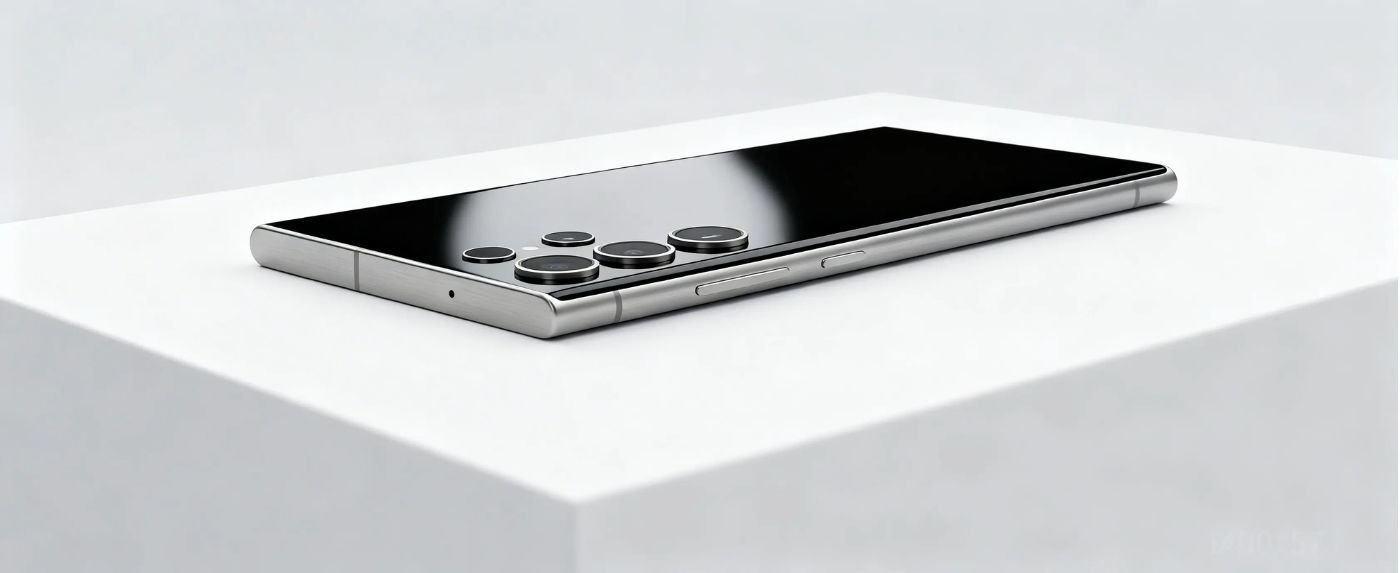
The Samsung Galaxy s25 Ultra stands as a peak achievement in mobile engineering, featuring the ultra-powerful Snapdragon 8 Elite chip, a stunning 6.9-inch 120 Hz display, and an integrated S Pen.
It is designed to be the ultimate productivity and photography tool. However, even the most advanced flagship can encounter “growing pains” shortly after launch.
Whether it is the heat generated by the dense processing required for Galaxy AI or minor software bugs in One UI 7, understanding the root causes and their fixes is essential for any owner.
This guide provides a deep dive into Samsung s25 problems and the proven steps to keep your device running at its absolute best.
Table of Contents
ToggleBattery Drain and Overheating
One of the most frequently reported s25 ultra issues involves the device running warmer than expected or losing battery percentage rapidly during idle periods.
Causes: High-Refresh-Rate Display and AI Processing
The Galaxy S25 Ultra uses a Dynamic AMOLED 2X panel that can reach 2,600 nits of brightness. Combined with the always-active Galaxy AI features and the high performance of the Snapdragon 8 Elite, the hardware can generate significant heat.
Background tasks, such as indexing new files or frequent AI-driven “Circle to Search” activities, can also put a steady drain on the 5,000 mAh cell.
Solutions: Optimize Settings and Cooling
- Adjust Performance Profile: Navigate to Settings > Battery > Processing Speed and select “Light.” This prioritizes cooling and battery life without a noticeable drop in daily speed.
- Use Thermal Guardian: Download the Samsung “Good Guardians” app from the Galaxy Store and use the Thermal Guardian module to lower the temperature threshold.
- Wipe Cache Partition: If the phone is heating up without reason, turn the device off and hold the Power and Volume Up buttons to enter Recovery Mode. Select “Wipe Cache Partition” to clear temporary system files that might be causing a loop.
Camera and Photo Quality Glitches
Samsung’s 200MP sensor is legendary, but users have occasionally encountered Galaxy s25 Ultra camera issues like blurring or artifacts in specific lighting conditions.
Causes: Lens Fogging or Software Bugs
Issues often arise due to aggressive post-processing algorithms in One UI 7, which can sometimes over-sharpen images or cause a “smeared” look in extreme low light.
Physical factors, such as condensation under the lens or fingerprint smudges, can also degrade the quality of the 50MP telephoto shots.
Solutions: Firmware and App Resets
- Clear Camera Cache: Go to Settings > Apps > Camera > Storage and tap “Clear Cache.” This fixes most app-level lag or crashing.
- Disable Scene Optimizer: If your colors look unrealistic, turn off “Scene Optimizer” in the camera settings to get a more natural, raw image.
- Firmware Updates: Samsung frequently releases large “Camera Patches” (sometimes over 1GB) specifically to tune the sensor’s processing. Always ensure your software is up-to-date.
Connectivity Drops (Wi-Fi, Bluetooth, 5G)
Stable connectivity is the backbone of the Ultra experience, yet some users report fluctuating 5G signals or Bluetooth devices disconnecting.
Causes: Network Congestion or ROM Conflicts
Carrier-specific updates or network congestion in high-traffic areas can cause the modem to “handshake” poorly with towers. Additionally, data imported via “Smart Switch” can sometimes carry over corrupted Wi-Fi profiles from older phones.
Solutions: Reset and Re-pair
- Reset Network Settings: Navigate to Settings > General Management > Reset > Reset Network Settings. This will wipe Wi-Fi and Bluetooth data but often fixes deep-seated connectivity bugs.
- Toggle Airplane Mode: A quick 10-second toggle of Airplane Mode forces the modem to re-scan for the strongest available tower.
- Check Carrier Updates: Sometimes a “Carrier Settings Update” is required separately from the Android OS update; check your SIM settings for notifications.
Screen and Display Problems
The Samsung Galaxy s25 Ultra features Gorilla Glass Armor for reduced reflections, but display-related complaints occasionally surface.
Causes: Burn-in and Touch Sensitivity
Burn-in can occur if static images (like navigation bars) stay on the screen at max brightness for hours. Furthermore, some users report “dead zones” where the screen doesn’t register touch, often caused by thick third-party screen protectors or software glitches.
Solutions: Diagnostics and Sensitivity
- Enable Touch Sensitivity: If you use a screen protector, go to Settings > Display and toggle “Touch Sensitivity” to ON.
- Run Diagnostics: Use the “Samsung Members” app to run a “Display Diagnostic” test. This will identify if any pixels are truly dead or if it is a software mapping issue.
- Factory Reset: If the screen flickers or behaves erratically after an update, a factory reset is the final software-side solution before seeking hardware repair.
Performance Lag and App Crashes
Even with 12 GB of RAM, users may experience “micro-stutters” or apps that simply refuse to open.
Causes: RAM Overload or Outdated Apps
High-intensity AI features can occasionally “hog” the system’s memory. Furthermore, apps that have not been optimized for the latest version of One UI may crash upon launch.
Solutions: Memory Management
- Clear RAM via Device Care: Go to Settings > Device Care and tap “Optimize Now.” This kills unnecessary background processes.
- Disable Bloatware: Use the “Apps” menu to disable pre-installed software you don’t use, which prevents them from auto-starting.
- App Reinstallation: If a specific app keeps crashing, uninstalling and reinstalling it from the Play Store is more effective than just clearing the cache.
Storage and Software Update Failures
As files get larger, managing the internal 256GB or 512GB of storage becomes a priority.
Causes: Corrupted Downloads or Full Memory
A software update requires at least 10–15 GB of free space to download and unpack. If your storage is nearly full, the update may fail halfway through, potentially leaving the phone in a “boot loop.”
Solutions: Safe Mode and Cleaning
- Free Up Space: Use the “Storage” menu in Device Care to find and delete “Large Files” or duplicate photos.
- Boot in Safe Mode: If an update is stuck, hold the Power off icon on the screen until “Safe Mode” appears. In this mode, only system apps run, allowing you to delete problematic files and try the update again.
- Sideload Updates: For advanced users, using Samsung Odin on a PC can manually push a software update if the “Over the Air” (OTA) method fails.
Conclusion and Pro Tips
While the Samsung Galaxy s25 Ultra is a powerhouse, it requires a little maintenance to stay in peak condition. Most Samsung s25 problems are resolved with simple software adjustments rather than expensive repairs.
Preventive Maintenance Checklist
- Weekly Restart: Set your phone to auto-restart at 3:00 AM once a week to refresh the system cache.
- Avoid Heat: Don’t leave your phone on a car dashboard; excessive heat is the #1 killer of battery health.
- Use Official Chargers: Stick to 45W PPS chargers to ensure the battery is charged safely and efficiently.
When to Contact Samsung Support
If you see physical green lines on the display or if the battery swells, stop using the device immediately and visit a certified Samsung service center.
FAQs
Q1: Does the Samsung S25 Ultra have overheating problems?
Some users report that the S25 Ultra can reach temperatures of 43°C–44°C during intense gaming or 5G video calls. However, recent software updates and the “Light Performance” mode have successfully stabilized temperatures for the majority of owners.
Q2: Why is the Galaxy S25 Ultra the toughest screen ever?
It features Corning Gorilla Armor 2, a new glass-ceramic material that survived 2.2-meter drops on concrete in lab tests. It is four times more scratch-resistant than previous glass and reduces surface reflections by up to 75%.
Q3: What is the biggest problem with Samsung phones?
Stagnation is currently the biggest criticism; many users feel the “Ultra” series has barely changed since 2022, sticking with the same 5,000 mAh battery and similar camera sensors for several generations while rivals innovate faster.
Q4: Does the Samsung S25 Ultra have a cooling system?
Yes, it contains a 40% larger vapor chamber compared to the S24 Ultra, paired with a customized “Tailored TIM” (Thermal Interface Material) to more efficiently draw heat away from the Snapdragon 8 Elite chip.
Q5: Why does Samsung have a bad reputation?
Its reputation has taken a hit due to “ring-fencing” innovation—restricting major upgrades like fast charging and high-res telephoto lenses only to the expensive Ultra tier, while the base S25 models remain technologically stagnant.
Q6: Is it safe to leave the s25 Ultra charging overnight?
It is completely safe thanks to the “Battery Protection” software that pauses charging at 80% or 85% to prevent chemical wear. Modern sensors also instantly cut power if any abnormal heat is detected near the charging port.