
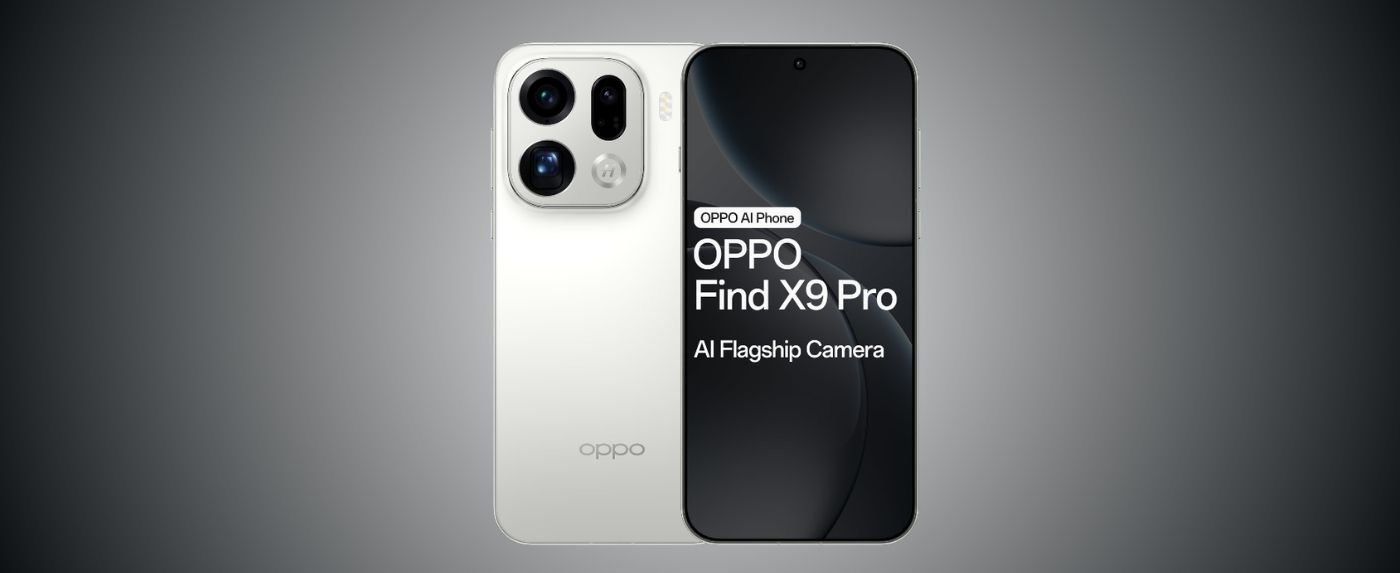
The Oppo Find X9 Pro has arrived as a titan of mobile photography and speed in 2026. Boasting a breathtaking Oppo X9 Pro display resolution of QHD+ and a massive sensor array, it is a dream for power users.
However, pushing the boundaries of hardware often leads to software friction and thermal hurdles.
Whether you are an early adopter or a long-term fan, navigating the quirks of ColorOS and high-performance hardware is key.
This guide breaks down the most frequent obstacles and provides expert-vetted solutions to keep your flagship running perfectly.
Table of Contents
ToggleOverheating During Gaming and Calls: How to Fix
Performance comes at a cost, and for the Oppo Find X9 Pro, that cost is often thermal energy. The Snapdragon 8 Elite chipset is powerful but generates significant heat during sustained loads.
Why Your Oppo Gets Hot
Gaming at max settings or long 5G video calls trigger the processor to work at peak frequency. If the ambient temperature is high, the phone may struggle to dissipate heat through its vapor chamber. This can lead to frame drops or the phone becoming uncomfortable to hold.
Expert Fixes for Thermal Management
- Use Gaming Mode: Open the “Games” app and select “Balanced Mode” instead of “Pro Gamer Mode” for long sessions.
- Remove Heavy Cases: Thick silicone cases trap heat; switch to a thinner shell if you game frequently.
- Limit Background 5G: Use Wi-Fi for video calls whenever possible to reduce the modem’s workload.
Battery Drain Issues and Optimization Tips in Oppo
The Oppo X9 Pro battery life is generally excellent, but software bloat can quickly sap the 5,400mAh cell. Many users notice a sharp drop in percentage even when the phone is idle.
Identifying the Drain
Often, “Always-On Display” and high-frequency location tracking are the primary culprits. Furthermore, certain social media apps may stay active in the background, constantly refreshing data.
Optimization Checklist
- Adaptive Refresh Rate: Ensure your display is set to “Auto-select” to utilize the LTPO panel’s energy-saving capabilities.
- Optimize Battery Use: Go to Settings > Battery > More Settings and enable “Optimized Standby.”
- App Freezer: Use the built-in ColorOS “App Freezer” to stop rarely used apps from waking up the processor.
Camera App Crashes: Easy Solutions
The Oppo Find X9 Pro is defined by its cameras, but a crashing app can ruin a perfect moment. This issue usually stems from a conflict between the image signal processor (ISP) and the software.
Troubleshooting Steps
- Clear Camera Cache: Long-press the Camera icon > App Info > Storage Usage > Clear Cache.
- Check Permissions: Ensure the app has unrestricted access to “Files and Media” and “Location.”
- Disable Quick Launch: Sometimes the double-tap volume shortcut causes a software hang; try disabling it temporarily.
ColorOS Update Bugs on Oppo Find X9 Pro and Fixes
Frequent updates are great for security but can sometimes introduce “micro-stutters” or broken UI elements.
Common Update Glitches
Users have reported that the notification shade occasionally becomes unresponsive after a major version jump. These bugs are typically caused by leftover cache files from the previous OS version.
The Fix
Performing a “System Settings Reset” (not a full data wipe) often solves these glitches. It refreshes the UI configuration without deleting your personal photos or apps.
Display Flickering and Touch Issues
With a massive Oppo Find X9 screen size of 6.82 inches, even a small flicker can be highly distracting.
Root Causes
Flickering often happens at low brightness due to “Pulse Width Modulation” (PWM). Touch issues are usually linked to “Mistouch Prevention” being too sensitive on the curved edges of the screen.
How to Resolve
- Enable DC Dimming: Search for “Eye Comfort” settings to find anti-flicker toggles.
- Screen Protector Check: Ensure your protector is compatible with ultrasonic fingerprint sensors.
- Sensitivity Tweak: Adjust the “Edge Mistouch Prevention” area in the settings to fit your grip style.
Connectivity Problems: Wi-Fi and 5G Drops
A flagship is only as good as its connection. Some users experience “signal hunting,” where the phone constantly switches between 4G and 5G.
Fixing Signal Stability
- Reset Network Settings: This is the most effective fix for persistent Wi-Fi drops.
- Toggle Dual-Channel Acceleration: Go to Wi-Fi settings and enable this to use mobile data and Wi-Fi simultaneously for better stability.
- Update Carrier Settings: Ensure your SIM card is optimized for the latest 2026 5G bands.
Storage Full Errors Despite Space
It is frustrating to see a “Storage Full” warning when your gallery is empty. This is often caused by “system junk” or hidden “recently deleted” folders.
Clearing the Ghost Files
- Empty the Trash: Deleted photos stay in the “Recently Deleted” album for 30 days, taking up valuable space.
- Clear Telegram/WhatsApp Cache: These apps can store gigabytes of hidden video data.
- Use Phone Manager: Run the built-in “Clean Up” tool to remove redundant APKs and large log files.
Charging Slowly or Not Detected
The Oppo Find X9 Pro charging speed is legendary, reaching 100W on a wired connection. If it feels slow, something is definitely wrong.
Why Charging Fails
The most common cause is lint in the USB-C port or using a non-SuperVOOC cable. If the phone detects moisture or debris, it will throttle the speed to 10W for safety.
Quick Solutions
- Clean the Port: Carefully use a wooden toothpick to remove pocket lint from the charging port.
- Check the Cable: Ensure you are using the original white-and-orange Oppo cable.
- Enable Smart Charging: Check that “Smart Rapid Charging” is toggled ON in battery settings.
How to Factory Reset Safely
If all else fails, a factory reset provides a fresh start. However, doing it incorrectly can lead to data loss.
Step-by-Step Guide
- Backup Data: Use Oppo Cloud or a physical hard drive to save your 4K videos and photos.
- Remove Accounts: Delete your Google and Oppo accounts from the device to prevent “Factory Reset Protection” (FRP) lock.
- The Reset: Go to Settings > System Settings > Backup and Reset > Reset Phone > Erase All Data.
When to Contact Oppo Support
Software can’t fix everything. You should reach out to a certified service center if you experience:
- Physical screen discoloration.
- The battery is swelling or pushing the back panel out.
- A complete failure of the periscope zoom lens.
Conclusion
The Oppo Find X9 Pro continues to stand as a pinnacle of mobile engineering and a truly capable flagship in 2026. While common hurdles like thermal spikes and minor software glitches can occasionally disrupt your experience, they are far from deal-breakers.
Most of these technical friction points are easily neutralized through precise settings adjustments and proactive system maintenance.
By implementing the expert strategies outlined in this guide, you can ensure your hardware remains lightning-fast and consistently cool under pressure.
This approach not only optimizes your current performance but also prepares your device for the next decade of digital innovation. Stay ahead of the curve by mastering the tools that keep your Find X9 Pro running at its absolute peak.
FAQs
Q1. Why does my Oppo Find X9 Pro screen flash a white pixel during calls?
This is not a dead pixel; it is the proximity sensor located under the display. It flashes to detect when the phone is near your ear so it can turn off the screen and prevent accidental touches.
Q2. How do I fix the “Seamless” AOD mode causing display lag?
A known bug in ColorOS 16 causes the screen to briefly return to the home screen after locking. To fix this, go to Settings > Wallpapers & Style > Always-On Display and switch from “Seamless” to Classic mode.
Q3. Why is my 80W SUPERVOOC charging slower than expected?
Charging speed can be throttled by heat or lint in the port. Ensure Smart Rapid Charging is enabled in Battery settings, use the original cable, and remove your case to improve heat dissipation during fast charging.
Q4. How can I resolve text selection and rendering bugs?
If text selection is jumping or letters are being cut off at the edge of the screen, try resetting your system settings. This refreshes the UI padding and scaling without deleting your personal data.
Q5. Is the 7,500 mAh battery drain normal during 4K video recording?
Recording in 4K 60 fps with Dolby Vision is extremely power-intensive. To extend your Oppo X9 Pro battery life, limit background apps via the Trinity Engine settings and use “Balanced Mode” instead of “High Performance” for daily tasks.